Camera and library capture
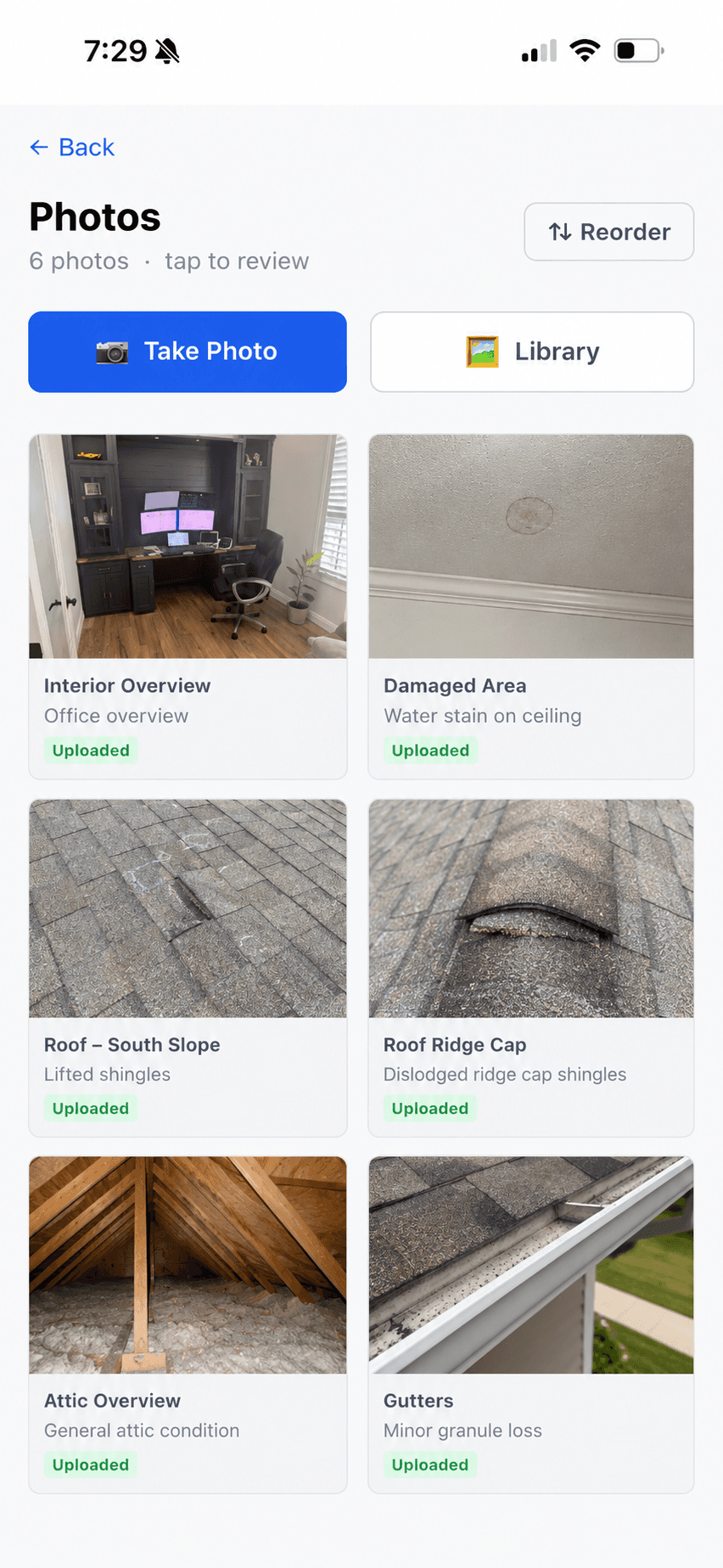
Take a photo in the mobile app or choose an existing image from the device library.
Adjuster Copilot keeps required-photo guidance, capture, categories, captions, ordering, upload status, and report use inside the same claim inspection workflow.
Product screenshots use approved demonstration data. Categories and captions remain subject to adjuster review.

The current workflow organizes human-captured evidence. It does not analyze image content or make claim decisions.
Take a photo in the mobile app or choose an existing image from the device library.
See covered and missing categories, capture from a missing item, or record why a required view cannot be photographed.
Choose a category before saving, add an optional caption, and edit either value from photo details.
Review the gallery order and explicitly save a new sequence for the inspection.
Keep captured photos in local device storage and queue them with the inspection when connectivity is unavailable.
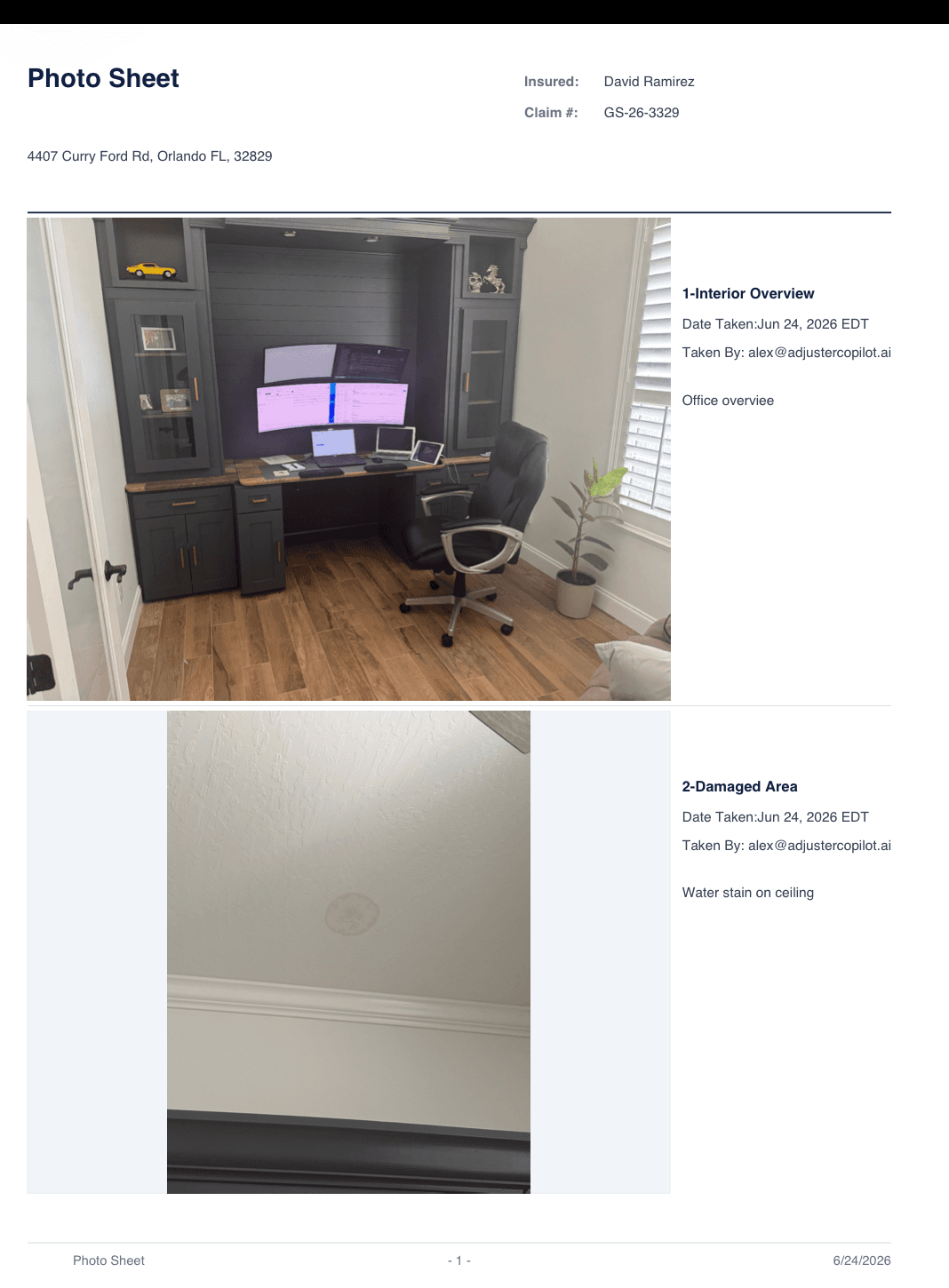
Use server-confirmed photos in the inspection photo sheet and full inspection report.
Required-photo behavior is resolved for the inspection rather than assumed to be identical for every claim.

Required categories can be resolved from the applicable inspection profile, client, and loss-type configuration. The picker places those categories first and also offers supplemental types.
Each required category shows whether it is covered, missing, or accompanied by an exception reason. Tapping an uncovered category opens capture with that category preselected for review.
A covered category confirms that a categorized photo exists or an exception was recorded. It does not prove the image is clear, relevant, sufficient, or correct.
Each stage preserves the difference between locally saved evidence and a server-confirmed upload.
See which configured categories are covered, missing, or documented with an exception reason.
Use the device camera or photo library. Starting from a missing category carries it into capture for review.
Choose the required category, add an optional caption, and verify both before saving.
Edit the category or caption from photo details and set the intended gallery order.
Distinguish Saved offline, Waiting to sync, Uploading, Uploaded, and Upload failed.
Generate the photo sheet or inspection report after synchronization.
The current gallery displays each photo with its human-readable category, optional adjuster-entered caption, and upload status. Adjusters can open a photo for closer review and edit its category or caption.
Saving a new gallery order requires a connection. Do not assume a local move reached the server until the save succeeds.

The status label is the evidence for where each file is in the handoff.
The compressed photo is retained locally but has not reached the server.
Photo metadata or binary upload is queued for the inspection.
The app is actively sending the photo file.
The server has confirmed the binary upload.
The file needs retry or user attention before handoff.
Photo-sheet generation is a connected server action and uses uploaded—not merely local—photo files.
When an applicable inspection profile defines photo-sheet categories and display order, the generated sheet uses that sequence. Categories configured not to appear are omitted, and unmatched photos move to a final miscellaneous group.
Without applicable profile ordering, output keeps the saved photo sequence. Optional empty categories are skipped; configured required categories can remain visible as missing.
See how documented evidence informs narrative drafting
These operational limits are part of a reliable photo workflow.
The mobile app needs camera permission to take a photo and photo-library permission to choose an image. Denied access blocks that action.
Selected images are compressed and converted to JPEG. The longest edge is limited by photo type to 900, 1600, or 1920 pixels.
Before upload confirmation, the photo depends on local app storage. Clearing or removing the app, signing out, or losing or changing the device puts unsynced evidence at risk.
Photo metadata and files need connectivity to reach the server. Photo-sheet generation and final report use require uploaded photos.
Direct camera capture is not offered in the web app. The web workflow uses file selection instead. No broader device-support promise is made.
Categories, captions, ordering, image quality, checklist coverage, exception reasons, and upload status all require user review.
Captions are optional and currently limited to 2,000 characters. A category must be selected before a new photo is saved.
Review the complete capability inventory and availability.
ExploreSee where photos, narratives, reporting, and office review connect.
ExploreUnderstand local storage, queued work, synchronization, and failure states.
ExploreFollow the complete assignment-to-report workflow for field adjusters.
ExploreSee how configured photo requirements support repeatable field documentation.
ExploreTutorials will use synthetic inspection data to show the current photo workflow without implying image-analysis capabilities.