Inspection profiles
The applicable profile can connect an inspection type with configured questionnaire, photo, narrative, and workflow behavior.
Follow a configured digital inspection workflow that keeps questions, required photos, evidence, progress, synchronization, narrative review, and report readiness connected to the claim.
Screenshots show the current product with synthetic demonstration data. Completion indicators guide human review; they do not make claim or compliance decisions.

The inspection workflow presents applicable requirements and current status. The adjuster observes the property, decides what evidence is relevant, verifies accuracy, and remains responsible for the completed file.
The applicable profile can connect an inspection type with configured questionnaire, photo, narrative, and workflow behavior.
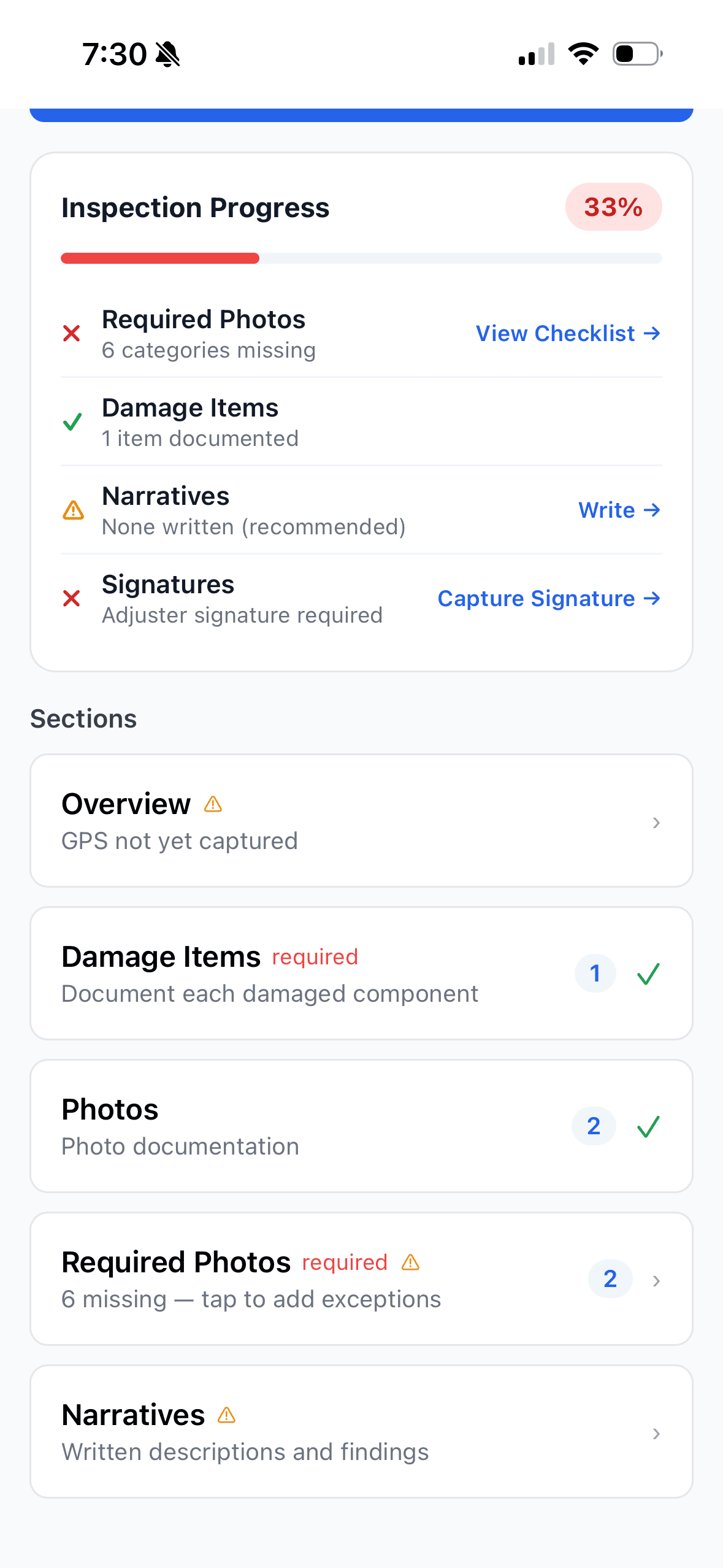
The inspection view distinguishes required, incomplete, recommended, and completed areas instead of presenting an unstructured form.
Applicable question templates and required-answer states guide what the adjuster records for the inspection.
Configured photo categories show covered, missing, or exception states and link directly into evidence capture.
Visible section indicators and a weighted readiness display help locate unfinished work while a separate completion gate preserves hard blockers.
Downloaded inspections support local answers, notes, damage items, photos, checklist decisions, and narrative text through connectivity gaps.
An inspection profile is the blueprint used to resolve relevant workflow configuration. It does not independently inspect the property or certify the resulting file.
Requirements depend on the profile and templates that actually resolve for the inspection. Their presence does not prove that every client standard has been configured, integrated, or enforced. Firms should verify configuration during setup and adjusters should verify the runtime requirements before handoff.
Review current configuration capabilitiesEach stage advances the same inspection record instead of creating separate notes, camera-roll evidence, and report inputs.
Start from the claim and load the applicable inspection data before entering an area with unreliable connectivity.
See the inspection modules, required states, recommended work, and current progress before beginning field capture.
Complete the configured questions that apply to the inspection and review any required answers that remain missing.
Record damage items, notes, required photo categories, supplemental photos, and applicable signatures in the inspection.
Use section indicators and the readiness display to locate unfinished work, then review the separate completion requirements before submission.
Return to the affected inspection with the app open, confirm queued work reaches the server, and resolve pending or failed items.
Generate an AI-assisted narrative from supported field evidence, then edit and approve the draft rather than treating it as a completed decision.
After synchronization, verify the documented evidence and reviewed narrative used by the current report and photo-sheet workflow.
Guidance connects the required work, while the dedicated feature owners explain each capture and synchronization behavior in depth.
Applicable questions appear inside the inspection. Required answers contribute to the configuration/completion state; the response remains the adjuster's documented observation.
Required categories show coverage and missing states. Adjusters can capture in context, add captions, organize the gallery, and record an exception where supported. A category state is not a guarantee that the image is sufficient.
Review the photo documentation workflow

The visible percentage is a weighted progress aid. Required-photo coverage, required questions, damage documentation, narratives, and signatures contribute differently, and non-applicable requirements are handled separately.
Required, incomplete, recommended, and completed states direct the adjuster to the part of the inspection needing attention.
Partial photo coverage can move the display incrementally, while other categories contribute when their applicable requirement is satisfied.
Hard blockers remain authoritative. A progress percentage does not certify compliance, guarantee evidence quality, or replace final review.
Downloaded inspection data supports field capture without service, but local completion and server-confirmed synchronization are different states.
Continue supported questionnaire answers, damage items, notes, photos, checklist decisions, and narrative text from data already downloaded to the device. Unsynced evidence remains dependent on local app storage.
Reopen the affected inspection with the app in the foreground, allow queued work to synchronize, and verify pending, successful, or failed states. Do not rely on a report or server copy until the required evidence is confirmed uploaded.
Review exact offline and synchronization behaviorThe final stages remain review steps, not automated claim decisions.
Supported inspection evidence can produce an editable narrative draft. The adjuster reviews the language, corrects the facts, and decides what belongs in the file. After required synchronization, current report and photo-sheet actions use the available server-confirmed evidence.
Understand AI narrative generation and human review
Expanded questionnaire libraries, report export formats, team roles, integrations, analytics, and advanced damage-detection AI remain in-development or roadmap items as identified on the Platform page.
Follow the full assignment-to-report workflow around the guided inspection.
ExploreReview local storage, connectivity boundaries, visible sync states, and recovery limits.
ExploreSee required-category guidance, capture, organization, upload states, and photo-sheet use.
ExploreOrganize the day’s mapped claims before beginning field inspections.
ExploreSee how guided field documentation connects to scheduling, synchronization, office review, and reporting.
ExploreSupported field documentation can continue after the inspection data has been downloaded. Final synchronization, server-confirmed uploads, and connected report actions still require connectivity.
The applicable inspection profile, questionnaire, and photo requirements can vary by configured client, loss type, and inspection type. This is configured behavior, not a carrier integration or automatic carrier enforcement claim.
The checklist shows configured categories as covered, missing, or documented with an exception reason. The adjuster still reviews image relevance, clarity, labels, and upload status.
Supported changes are stored locally and queued. When service returns, reopen the inspection, allow synchronization to run, and verify whether each item is pending, synced, or failed.
Yes. The current AI capability produces an editable narrative draft from supported inspection evidence. The adjuster must review and correct it before file use.
Tutorials will show profile resolution, sections, questionnaire and photo requirements, offline states, narrative review, and report preparation together.