For independent adjusting firms

IA firm software for consistent field inspection files

Give adjusters a configured inspection workflow while owners, operations managers, QA managers, and field managers retain practical visibility into the documentation moving through the firm.

Current product screens shown with synthetic demonstration data.
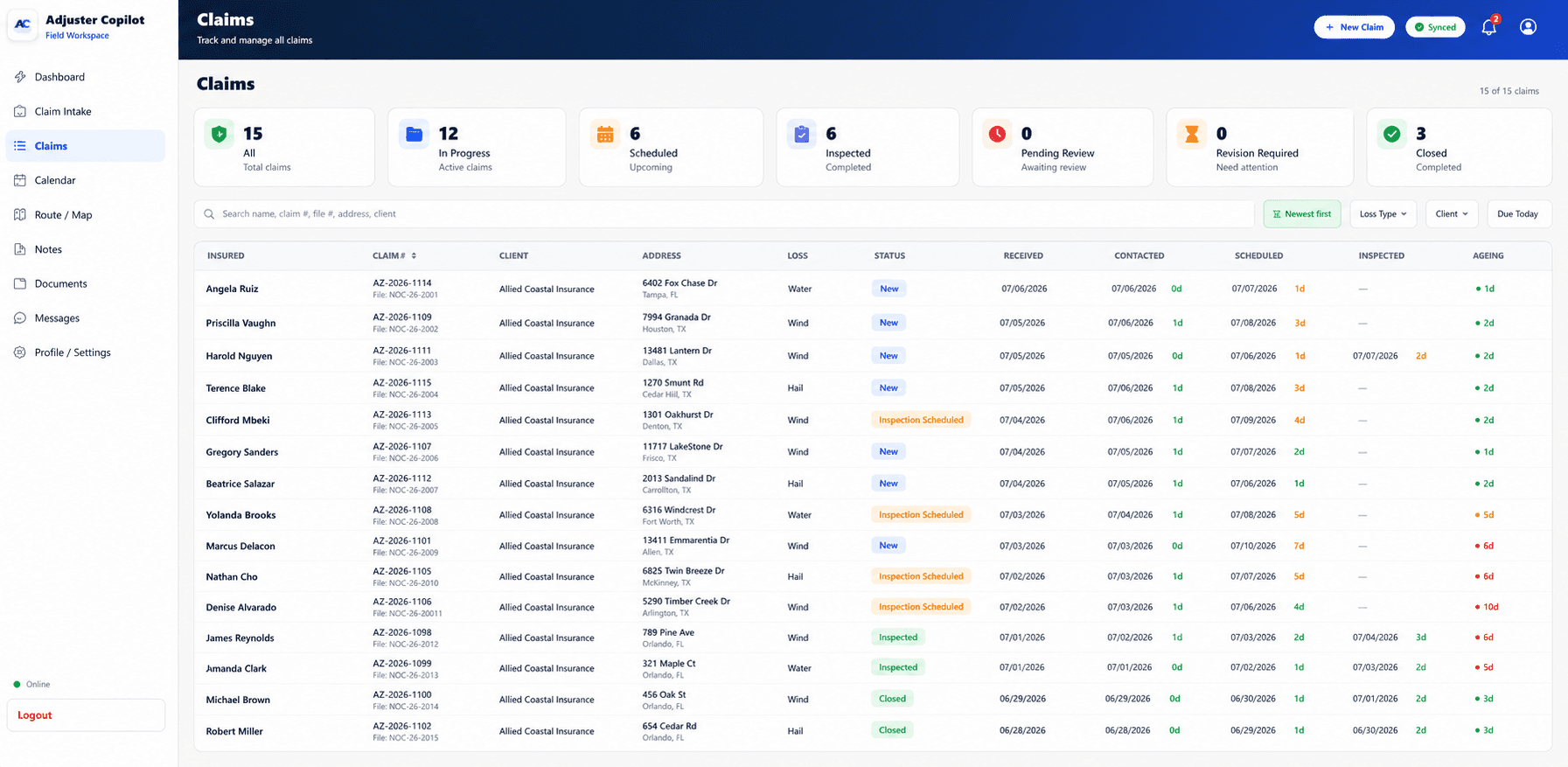
app.adjustercopilot.ai/claims
Adjuster Copilot desktop claims workspace — every assignment with pipeline status, inspection progress, and report state in one view
Firm operations

One inspection standard, viewed from each operational role

The same structured field file serves different review needs without implying automated QA, workforce management, or enterprise analytics.

Firm owners

Define a repeatable inspection approach without relying on every adjuster to reconstruct the firm’s standards from memory.

Operations managers

See claim and inspection status in the desktop workspace, then open the underlying file when follow-up is needed.

QA managers

Review a structured file built from required questions, photo categories, notes, and a human-reviewed narrative—not an automated quality score.

Field managers

Give adjusters a guided sequence that carries the configured requirements into the property, including when connectivity is limited.

Configured workflow

Standardize what gets collected without promising identical outcomes

Adjuster Copilot presents the requirements configured for the applicable inspection. The adjuster still evaluates the property, verifies the evidence, and remains responsible for the completed file.

  1. STEP 01

    Configure the inspection

    An inspection profile brings together the applicable questionnaire, required photo set, narrative template, and reporting rules.

  2. STEP 02

    Open the assigned claim

    The adjuster opens the claim and downloads the inspection data needed for supported offline fieldwork.

  3. STEP 03

    Follow the guided requirements

    Required questions, inspection items, and photo categories remain visible as the adjuster documents the property.

  4. STEP 04

    Capture and organize evidence

    Photos, labels, captions, notes, and answers stay associated with the claim and inspection rather than a separate camera roll.

  5. STEP 05

    Reconnect and synchronize

    Pending work uploads when connectivity is available. The app shows pending, successful, and failed synchronization states for user review.

  6. STEP 06

    Review the file and report

    Authorized users can review claim details and status while the adjuster verifies the narrative, photo sheet, and inspection report.

Adjuster Copilot — guided inspection progress with required items tracked
Required inspection items and progress
Adjuster Copilot — inspection photos captured and labeled by area
Claim photos organized by inspection category
Adjuster Copilot — AI-drafted inspection narrative from field notes
Editable AI-assisted narrative draft
Available now

Current tools for structured field documentation

These are current capabilities. Configuration can vary by client, loss type, and inspection profile.

Configurable workflows

Inspection profiles combine configured questions, photo requirements, narrative templates, and report behavior for the applicable work.

Required questionnaires

Guided question sets make the expected documentation visible during the inspection.

Required photo categories

Configured photo sets prompt adjusters to collect and organize the expected views by category.

Guided inspections

Progress and required items stay visible through a consistent field sequence.

Offline field operation

Downloaded claim and inspection data, supported answers, notes, and photos remain available on the device until synchronization can occur.

Inspection reporting

Captured details and organized photos carry into the current assembled report and photo-sheet workflow.

AI-assisted narratives

Field notes can produce an editable narrative draft; an adjuster reviews and approves the wording.

Operational visibility

The desktop workspace shows claim, inspection, review, revision, and report states with search and filters.

Office review

Visibility into files—not an enterprise control tower

Authorized operations users can search the current claim list, review workflow status, and open the underlying claim record. That visibility supports human follow-up; it does not automate quality decisions or workforce operations.

Follow the documentation into the claim

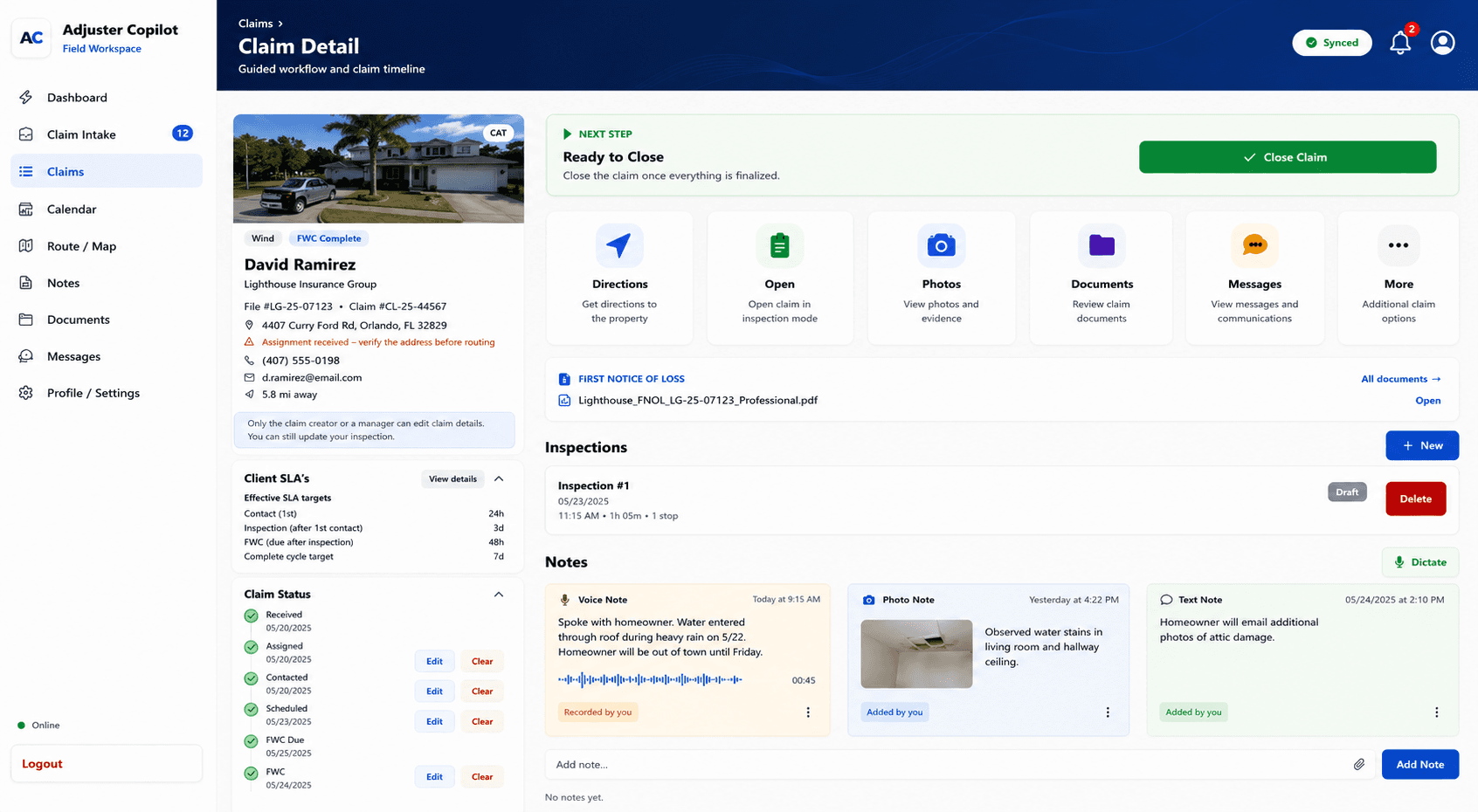
Open a claim to review its inspection status, photos, notes, messages, documents, and generated reports. Search and status filters help locate work that needs a person's attention.

app.adjustercopilot.ai/claims/gs-26-3329
Adjuster Copilot desktop claim detail — photos, notes, messages, documents, inspection status, and generated reports on one claim
Product boundaries

Current, configurable, planned, and unsupported are different

A firm evaluation should account for what is available today and what is not.

Current and configurable

  • Guided and offline inspections, photo organization, narrative drafting, and current reporting
  • Inspection profiles, questionnaires, required photo sets, narrative templates, and report configuration
  • Claim and workflow-status visibility for authorized operations users

Configured behavior depends on the applicable client, loss type, and inspection profile. It should be verified during setup.

Not represented as current

  • Workforce dispatch, workforce scheduling, or SLA enforcement
  • Automated QA scoring, enterprise analytics, or guaranteed completeness
  • Carrier integrations, client portals, public APIs, or webhooks
  • Compliance certifications or unrestricted multi-tenant administration

Expanded report export formats and team roles and permissions are in development. Integrations, analytics dashboards, public APIs, and advanced damage-detection AI are roadmap items without a promised delivery date.