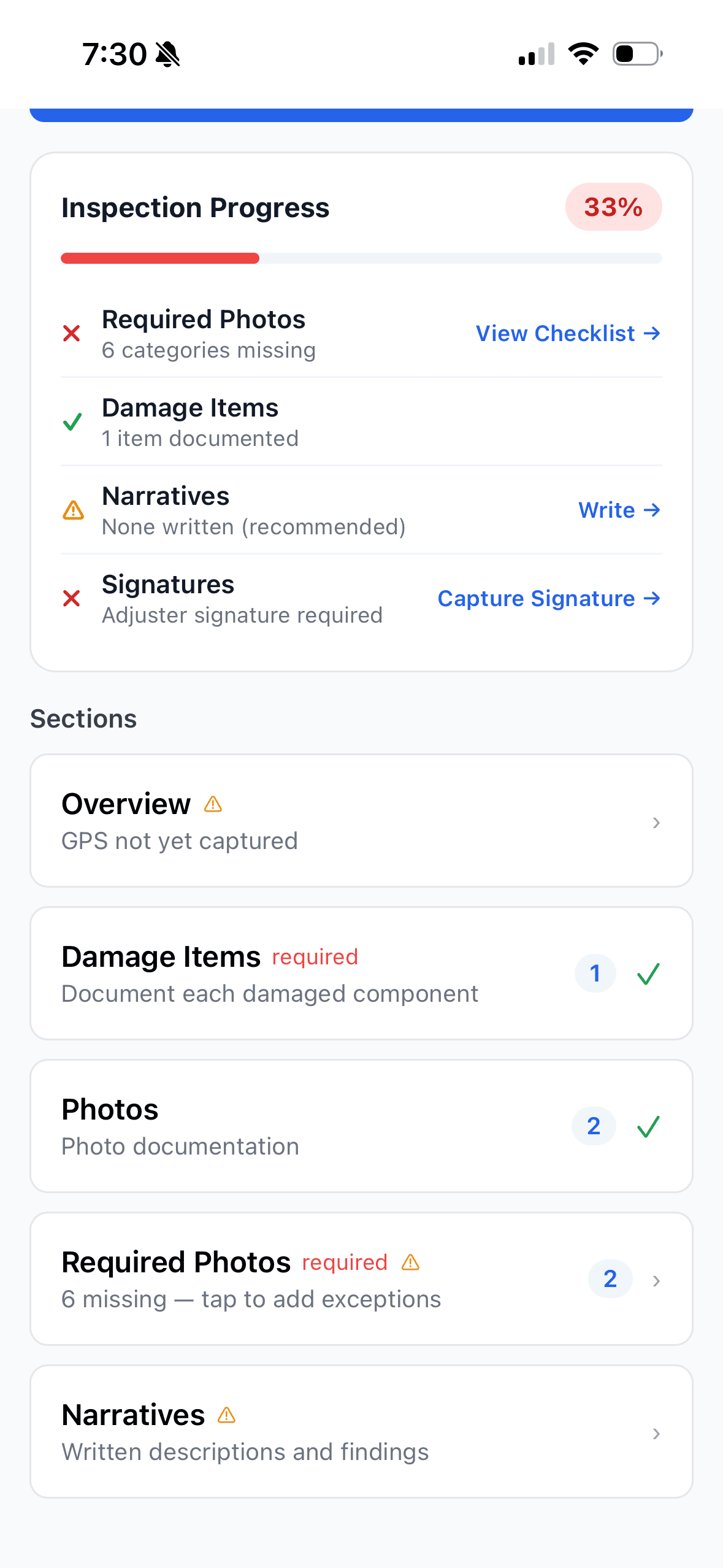
Open saved claim and inspection details
Assignments and inspection data already downloaded to the device remain available when the connection drops.
Adjuster Copilot is an offline claims inspection app that keeps downloaded assignment data and new field work on the device, then shows exactly what is pending, syncing, synced, or failed.
Offline does not mean every action is available without a connection. The boundaries are documented below.

The offline workflow begins with data already saved to the device. These are current capabilities, not a conceptual roadmap.
Assignments and inspection data already downloaded to the device remain available when the connection drops.
Record and edit inspection details, questionnaire responses, damage items, photo-checklist decisions, and narrative text.
New photos are retained locally with their inspection context and wait for their metadata and files to upload.
Signatures can be collected on the device and queued with the rest of the inspection work.

The local inspection record holds downloaded inspection data and queued changes. Captured photos retain a local file and their inspection metadata while upload is pending. Offline records are isolated to the signed-in user on that device.
“Saved locally” is not the same as “synced.” Do not remove the app, clear its storage, sign out, or move to another device before the pending work has synchronized.
The app makes the boundary visible instead of treating every offline action as complete.
Existing narrative text can be created or edited offline and queued. Generating a new AI draft is a connected action. Learn what the current AI does on the AI narrative page.
A completed field visit is not the same as a completed sync. The final step is verifying the server received the queued work.
Load the claim and inspection before entering a dead zone. If an inspection has never been downloaded, the app asks you to connect once rather than showing incomplete data.
The app continues from saved inspection data. New field entries are written locally and queued instead of depending on a live request for every action.
Offline and pending indicators separate device-saved work from server-synced work. Photo items also identify locally saved, upload-pending, uploading, uploaded, and failed states.
When connectivity returns while the inspection home screen is active, Adjuster Copilot attempts to flush that inspection’s queue. Returning the app to the foreground can also trigger the attempt.
Wait for the synced state before treating the handoff as complete. If the app shows pending or failed work, use Sync Now or Retry from the affected inspection.
The current app includes a Sync Status destination for offline changes and uploads. This screenshot uses approved demonstration data and shows the current settings entry—not a conceptual mockup.

The labels below document the current state vocabulary. They are text explanations, not reconstructed product screenshots.
Offline — changes saved on this device
The app identifies the lost connection and shows that work is saved on this device. A count appears when changes are waiting.
Changes pending sync
Queued changes remain visible as waiting to sync. On the inspection home screen, Sync Now is available when connected.
Syncing…
While the active inspection queue is being sent, the inspection home screen shows that synchronization is in progress.
All changes synced
A successful flush shows that all changes are synced. The temporary success banner then clears.
Sync failed — Retry
A failed item is shown separately from pending work. Open the affected inspection and use Retry; a failed item is not presented as safely synced.
These boundaries matter when the inspection file is the work product.
Synchronization is not an operating-system background service. Keep the app in the foreground and return to the affected inspection to complete or retry synchronization.
Do not assume simultaneous edits on multiple devices will be merged automatically. Confirm the server-side result after syncing if another user or device may have changed the same record.
Unsynced work depends on the app’s local storage remaining available. A lost, damaged, reset, cleared, or changed device can put unsynced work at risk.
Current availability is represented by the App Store link above. For a specific device or operating-system requirement, verify the current listing or review the supported workflow in the tutorials.
See how required categories, captions, local files, uploads, and photo sheets connect.
ExploreReview guided documentation, photos, signatures, narratives, reporting, and routing.
ExploreSee how mobile inspection work connects to the broader claim workflow.
ExploreFollow the complete individual workflow from assignment through report.
ExploreSee how configured offline field requirements support consistent documentation across adjusters.
ExploreExplore how the platform applies across adjusters, firms, and CAT operations.
ExploreTutorials will show the current offline, pending, successful, and failed-state behavior against a synthetic inspection.